
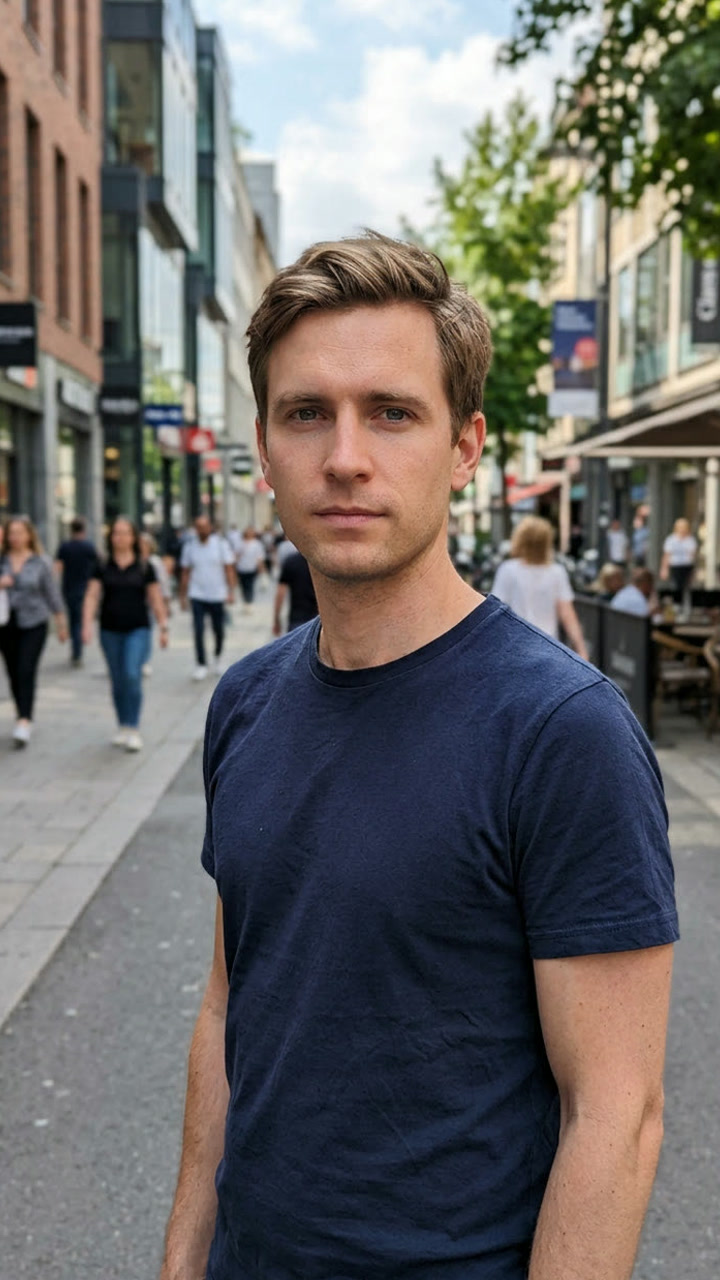
A portrait with an unexpected punchline
The Cutting the Branch AI Video Generator animates a portrait into fictional slapstick: a person chops through their own support and falls into a pond. The fixed template supplies the action directions.
Part of Agnes Video Generator, this effect needs only a photograph. Nobody needs to climb a tree, handle an axe or perform the joke in real life. The humor comes from an obvious mistake followed by a surprise splash, rather than a complicated story or dialogue.
Choose a portrait for the Cutting the Branch AI Video Generator
The model works from visible facial features, hair and clothing. Choose one consenting adult in even light. Avoid sunglasses, heavy filters and objects covering the face. A sharp image makes those details easier to read; a blurry face gives the model less useful information to work with.
Before submission, the tool opens a vertical crop. Drag and zoom to keep the face and upper body visible, then confirm. Check that the frame includes the top of the head and does not cut through the chin. Your uploaded photo is reviewed before processing.
One template and one sequence
The Cutting the Branch AI Video Generator offers one fixed effect, with no duration selector or custom prompt editor. Directions establish crouching, axe chopping, the branch breaking and a short fall. You choose the portrait rather than writing the action yourself.
The animation requests a continuous medium-wide shot that keeps the person, cut point and pond visible. These are model instructions; inspect hands, axe contact and gravity afterward. The setup needs to remain readable for the punchline to work, so review the whole sequence instead of judging only its opening frame.
Understand the Before and After reference
The comparison pairs a reframed source portrait with a playable demonstration from the MakeViral page supplied for this project. The After poster is freshly extracted from that video. Play the demonstration to understand the intended scene and timing before deciding whether this effect suits your photo.
The reference runs about twelve seconds at its original speed. New tasks request fifteen seconds. The reference is not a site-generated result or a motion-control input. Your output is newly generated from the portrait and fixed instructions, so its details and timing can differ from the demonstration.
Review the price before generating
The Cutting the Branch AI Video Generator quote uses the live image-to-video rate for a fifteen-second request. Review the displayed total before submitting. An account and sufficient eligible credits are required. The quote shown for your request is the amount to check when deciding whether to continue.
Buying credits does not start a task automatically. Return and confirm generation yourself. If pricing changes before acceptance, review the updated quote and click again to submit. Purchasing a pack and requesting a video are separate actions; take a moment to confirm the selected portrait before generating.
Follow your task's progress
The Cutting the Branch AI Video Generator saves accepted tasks in a persistent queue. Follow queued and processing states here or in project history; the tab can be closed while processing continues. Keep the task record so you can return to the same request rather than create a duplicate while waiting.
Credits are reserved on acceptance and settled once on success. Confirmed failures release the reservation. Uncertain provider responses remain pending for reconciliation without automatic paid resubmission. A delayed response does not by itself establish that generation failed, so check the existing task before submitting again.
Download and review the joke
A successful paid Cutting the Branch AI Video Generator result includes MP4 download without another download charge. Check the full action, including the break and ending, before sharing your video. Watch once at normal speed to see whether the cause and effect are clear, then pause on any frame that looks unusual.
Generated clips can contain identity changes, extra fingers or implausible motion. Review these details yourself. A recognizable starting photo cannot guarantee perfect likeness in every frame. If a result looks confusing, avoid presenting it as a faithful recreation of the reference or as footage of an actual event.
Prepare a vertical social clip
The output uses vertical 9:16 framing. Social platforms may crop or recompress it, so check their final preview. Keep captions clear of faces and the cut point. Place any added text where it does not hide the branch giving way, since that moment explains the joke.
The tool does not post to social accounts or grant soundtrack rights. Add only permitted music, review the destination platform’s current upload requirements and confirm the final playback format. Label the clip as AI-generated so viewers understand that the apparent stunt is fictional.
Keep the portrait private
Uploads use private storage and ownership checks. Temporary authorized media access supports processing and playback. Your photo and result do not automatically enter the public comparison. Only use a portrait you have permission to animate, including when making a joke for someone else.
Use Share this page in the footer to choose a social platform. This shares the tool address, not your private output. Downloading a finished file and sending that file to someone is a separate choice. Contact support for account or media deletion questions.
Know the limits of the effect
This tool creates fictional entertainment. Do not imitate the stunt or present generated footage as a real accident. An upload must depict an adult with permission to animate their likeness. The scene is designed as an exaggerated visual gag, not as guidance on tools, tree work or physical safety.
For another effect, try hamster dance or review pricing. Each tool has its own input requirements and generation settings; check those before starting another task. A photo that works well for this scene may need a different crop for a different animation.