
Selected
Courtyard Duo
9.91s · 9:16A side-by-side dance with coordinated hand movements, knee lifts and a playful finish.
A side-by-side dance with coordinated hand movements, knee lifts and a playful finish.
Two individual dancer photos, one complete duo dance. See how the left and right photo assignments come together in Courtyard Duo.
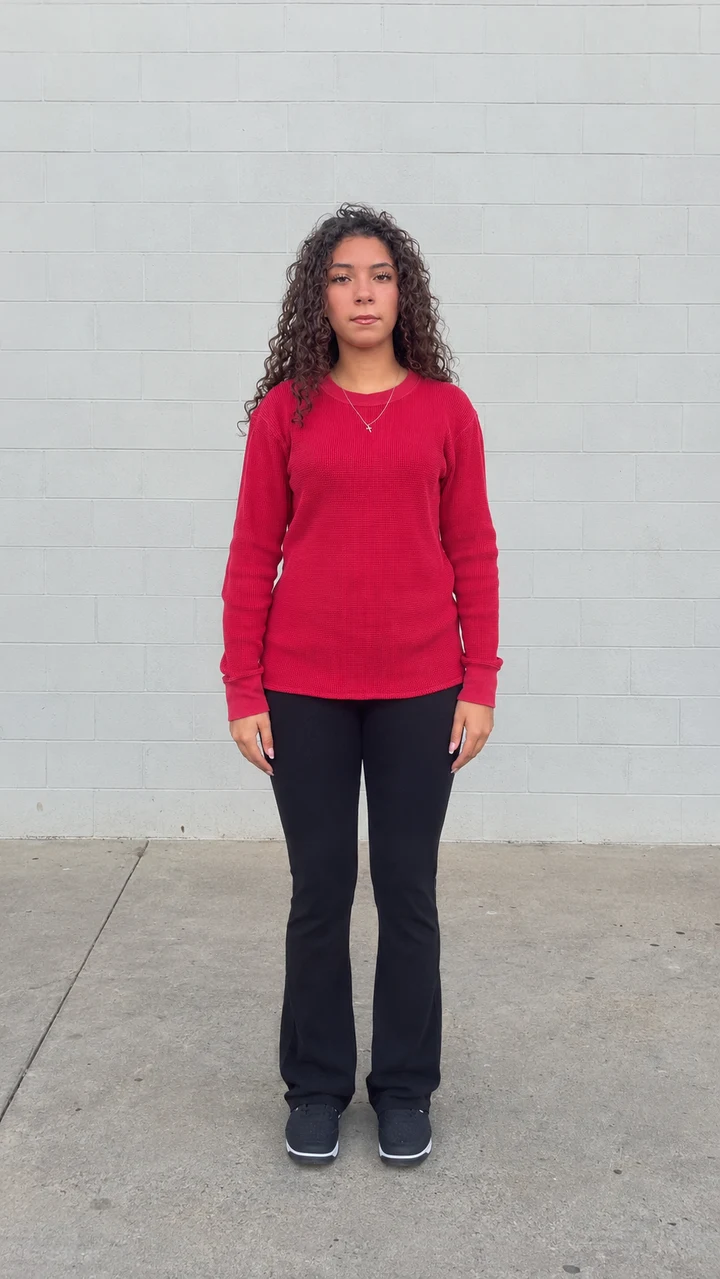 Photo 1 · Left dancer
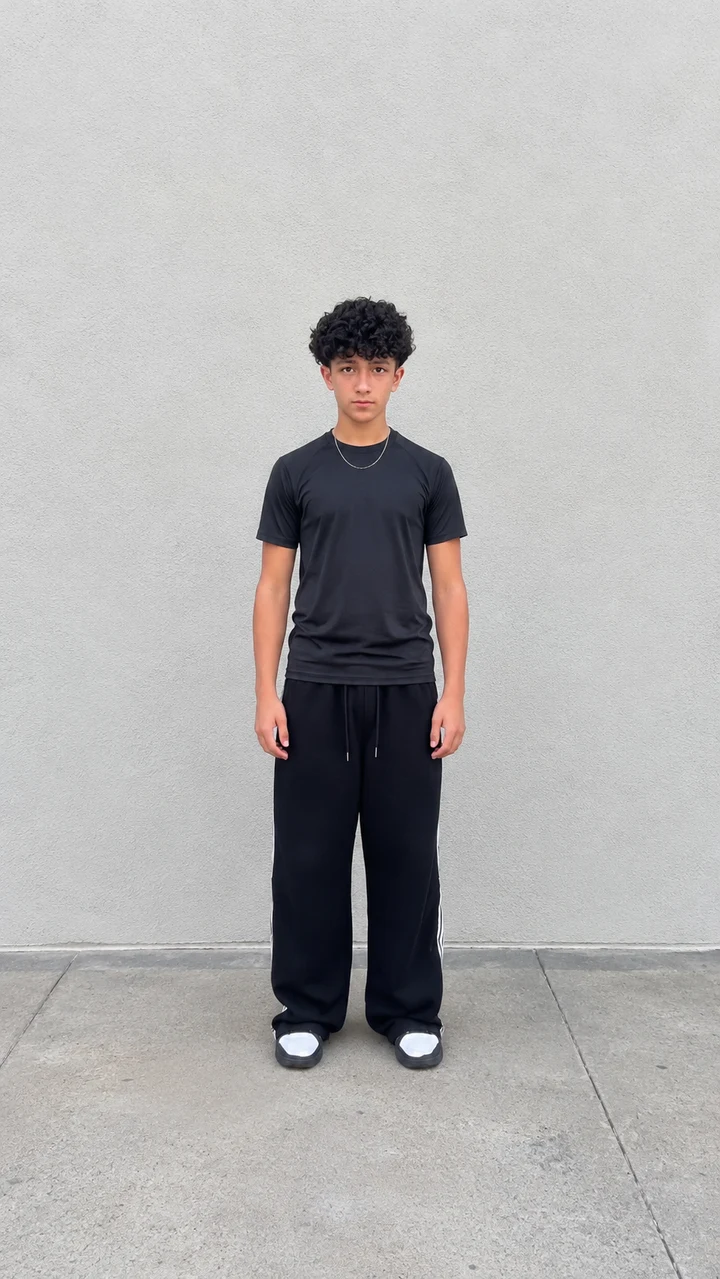 Photo 2 · Right dancer
Watch all three dances with sound. Choose Use this template to select your favorite and return to the generator.
A side-by-side dance with coordinated hand movements, knee lifts and a playful finish.
Two dancers bounce, wave and move together outdoors, keeping the original scene and sound.
Step back into a coordinated bedroom dance with crossed arms, knee lifts, small hops and the original sound.
Choose a duo template, add a separate photo for each dancer and review your quote.
Select the dance setting. Upload one clear photo of each consenting adult and confirm the vertical crops.
The labels map photo 1 to the original left dancer and photo 2 to the original right dancer.
Confirm permission, review the live credit quote, sign in and generate. Your photos replace the two dancers in the selected performance.
Buying credits does not start generation. The tool keeps your existing request when a network response is uncertain.
Follow progress here or in project history. Review both faces and the full dance, then download the successful paid MP4.
The reference audio is retained. Check the destination platform’s music rules before posting.
The Can I Ride Dance AI Generator turns two photographs into a shared dance performance. Choose a duo template, add one photo for each person and let the tool place both people into the selected sequence. The appeal comes from seeing familiar faces move together: a small bounce, coordinated hands, a quick knee lift and a playful finish. You do not need to film a dance or rehearse the choreography with your partner.
The routine is associated with “Can I Ride” by SIDEPIECE and 95 South. This page focuses on two-person versions, with the original scene, movements and audio guiding the result. Your first photo belongs to the performer who begins on the left. Your second photo belongs to the performer who begins on the right. Those assignments follow the original performers if they move across the frame.
This tool is part of Agnes Video Generator. Explore the hamster dance generator for an animal effect or Cutting the Branch for a different visual joke. Check the input requirements for each effect before choosing a photograph, since a good image for one scene may need a different crop for another.
Courtyard Duo uses a side-by-side routine with chest-level hand movements, arm swings, a knee lift and a lighthearted ending. Driveway Duo puts the shared performance outdoors, with bounces and larger arm gestures. Bedroom Duo starts close to the camera in a purple room, then steps back into coordinated arm movements and light hops. Watch all three previews before choosing. Look at how the two performers stand, how much space they leave between their bodies and how their hands move around their faces.
All three templates use short vertical videos of about ten seconds. Their original lengths are preserved rather than extended to a longer requested duration. The tool does not offer a duration slider or an editable prompt. Selecting a template chooses its performance, setting and timing. You can change your selection before submitting a request; an active or uncertain request stays attached to its original template and photos.
Upload two separate photographs, each showing one adult who has agreed to appear. Choose sharp faces, even lighting and visible hair and clothing. A standing image with the arms and body unobstructed provides useful information for the replacement. Avoid heavy beauty filters, sunglasses hiding the eyes and group photos that leave the intended person ambiguous.
Each upload opens a vertical crop. Check the face and body before confirming, and leave space around the head and shoulders. The left and right labels describe the original performers at the start of the clip, rather than a promise that someone will remain at one screen coordinate forever. If the dancers cross, the same photo should continue following the same performer.
The first template’s comparison presents each dancer in a separate photo panel beside the complete duo video. The left photo maps to the dancer starting on the left, and the right photo maps to the dancer starting on the right. Each photo shows one person facing forward, with their full body visible from head to shoes. Play the video to see both performers move together throughout the full sequence and hear its sound.
Your own result is a new AI edit using the two uploaded photographs. The reference guides motion and scene continuity; it does not guarantee perfect face preservation or exact hand shapes. Watch both performers throughout the result, especially during arm crossings, turns and moments when one person moves in front of the other. A recognizable first frame is only one part of a convincing dance.
Start by selecting the duo you prefer and uploading both photos. Confirm each crop, check that the photo order is correct and confirm you have permission to animate both adults. You can replace a photo before submission if its lighting or framing does not look suitable. The template supplies the dance directions automatically, with no separate choreography recording or custom prompt required.
Next, review the current credit quote and generate. An account and eligible credits are required. The tool checks the photos, permission, quote and balance before accepting the task. If you need a credit pack, you can review the pricing section and return afterward. Buying credits does not start a video automatically, so you remain in control of the final submission.
Accepted tasks appear here and in project history. The video continues processing if you leave the page, so you do not need to keep a tab open while waiting. When a connection drops, return to the same task instead of repeatedly starting new generations. A delay can mean that work is still continuing, rather than that the request failed.
Credits are reserved when a task is accepted and settled once when it succeeds. Confirmed failures release the reservation. An uncertain provider response remains pending while its status is checked, without automatically sending another paid generation. A price change before acceptance requires you to review the new quote and click again; the tool keeps the uploaded photo references for that retry.
Watch the completed video from start to finish. Check whether both faces stay associated with the right bodies, whether hands belong to the correct person and whether clothing remains consistent during movement. Pay attention to overlapping arms and fast turns. These are places where AI editing can introduce identity changes, extra fingers or visual blending, even when the initial photographs are clear.
The reference audio is requested as part of the edit. Review the sound as well as the picture before sharing, and adjust your device volume if needed. AI processing can vary between attempts, and the tool does not guarantee perfect lip synchronization or a flawless recreation of every gesture. Download a result only after checking that it suits the version you want to post.
A successful paid result includes MP4 download without another download charge. Open it in TikTok, Instagram Reels or YouTube Shorts and inspect the publishing preview. Place captions where they do not cover either face or hide the hand movements. A suitable cover frame can help viewers recognize both people before playing the clip.
Retaining reference audio does not grant additional music rights. Follow the destination platform’s rules and choose an available library sound when appropriate. Label the clip as AI-generated so viewers understand that the dance was created from photographs. The generator does not publish to your social accounts automatically; uploading the downloaded file is a separate action you control.
Only use photographs of adults who agreed to the animation. Both uploads are reviewed, stored privately and checked for ownership when a generation is submitted. Your photos and finished video do not automatically become public examples on this page. Keep access to your account so you can revisit the same task and retrieve the completed result from project history.
The footer’s sharing buttons share this tool’s page address, rather than your private video. Sending a downloaded file to someone is a separate choice. For account or media questions, use contact support, and review the privacy policy before uploading another person’s photograph. Clear permission matters for a dance made with a friend just as much as for one made with a partner.
One-time credit packs with no subscription. Choose your pack, then spend credits on the scenes you create.
A small pack for your first ideas.
Checking current rate… USD
one-time purchase
Loading credit packs…
Checking…
More room to explore and refine.
Checking current rate… USD
one-time purchase
Loading credit packs…
Checking…
More credits for a larger collection of scenes.
Checking current rate… USD
one-time purchase
Loading credit packs…
Checking…
All prices are in USD. One-time purchases only. Any applicable tax is shown at checkout. Credits are added after payment is confirmed; generation also depends on service availability.
You can create your own version with Vibe Video. Upload a clear photo, select the dance template, and let AI animate the person with moves inspired by the viral TikTok trend. It's designed for making short, shareable dance clips without recording yourself.
A good generator should make the process simple, preserve your appearance, and produce smooth, recognizable dance movements. Vibe Video offers a dedicated creation experience where you can turn a still image into a personalized dance clip, preview the result, and download it for sharing.
Start by choosing a clear photo of yourself or someone who has given permission. Open the dance generator on Vibe Video, upload the image, and select the available template. Once processing finishes, review the animation and download your result. You don't need to learn the choreography or film a real performance.
Yes. The idea is to animate a person in a still photo using movements from the dance trend. A full-body image with visible arms and legs usually works better than a tightly cropped selfie. This gives the AI more visual information to create convincing body movements while keeping your recognizable appearance.
Some online generators offer limited free trials, while others require credits. Vibe Video uses a credit-based system, with the generation cost displayed before you submit a paid video. You can review the available pricing options and choose the package that suits your needs.
Create a short vertical dance video using your photo and the trending choreography. The dance features rhythmic bouncing, raised fists, overhead arm waves, and crossed-arm movements. After generating your clip, upload it to TikTok and select the appropriate Can I Ride sound from TikTok's music library, subject to its usage rules.
AI can animate your image to resemble the dance associated with "Can I Ride" by SIDEPIECE and 95 South. You can generate the visual performance without physically dancing. To match the music, use a properly licensed audio track or select the available sound when posting on a supported social platform.
You don't need a camera setup, dance skills, or recorded choreography. Simply upload a suitable photo to Vibe Video and use the dance template to animate it. The AI handles the body movement, allowing you to participate in the trend even if you've never performed the dance yourself.
A selfie can be a useful starting point, but a full-body photo is generally recommended for dance animation. The AI needs enough information about your body and clothing to generate coordinated arm and leg movements. If your selfie only shows your face, the generated movements may look less consistent.
Vibe Video's dedicated dance page is designed around the recognizable movements of this trend, including bouncing gestures, overhead waves, and crossed arms. Rather than writing a complicated animation prompt, you can start with a photo and use a prepared dance template to guide the result.
A two-person version is a popular way to recreate the trend with a friend or partner. For the best results, use clearly visible photos of both people, with enough space around their bodies for movement. Check the available duo template on Vibe Video before generating, since multi-person animation requires additional motion coordination.
Generate a vertical video using the dance template, ideally with a 9:16 aspect ratio. Review the animation to make sure the subject stays in frame, then download the finished clip. Upload it to Instagram Reels, add a suitable sound from the platform's music library, and include a short caption describing your version of the trend.
Yes. The photo-to-dance workflow is intended to make this possible without filming new footage. Upload a clear image, select the dance effect, and generate your clip. A well-lit photo with minimal background clutter and unobstructed body features will generally give the animation a better starting point.
Choose a high-quality image with natural body proportions, good lighting, and clearly visible hands and legs. Avoid photos where the subject is sitting, heavily cropped, or hidden behind objects. After generating, check the face, hand movements, and body consistency. AI motion can vary between attempts, so additional generations may improve the result.
You can use the dedicated Can I Ride dance template on Vibe Video. It's intended to simplify the creation process by pairing an uploaded photo with the trend's recognizable choreography, so you can focus on choosing the right image rather than describing every movement manually.